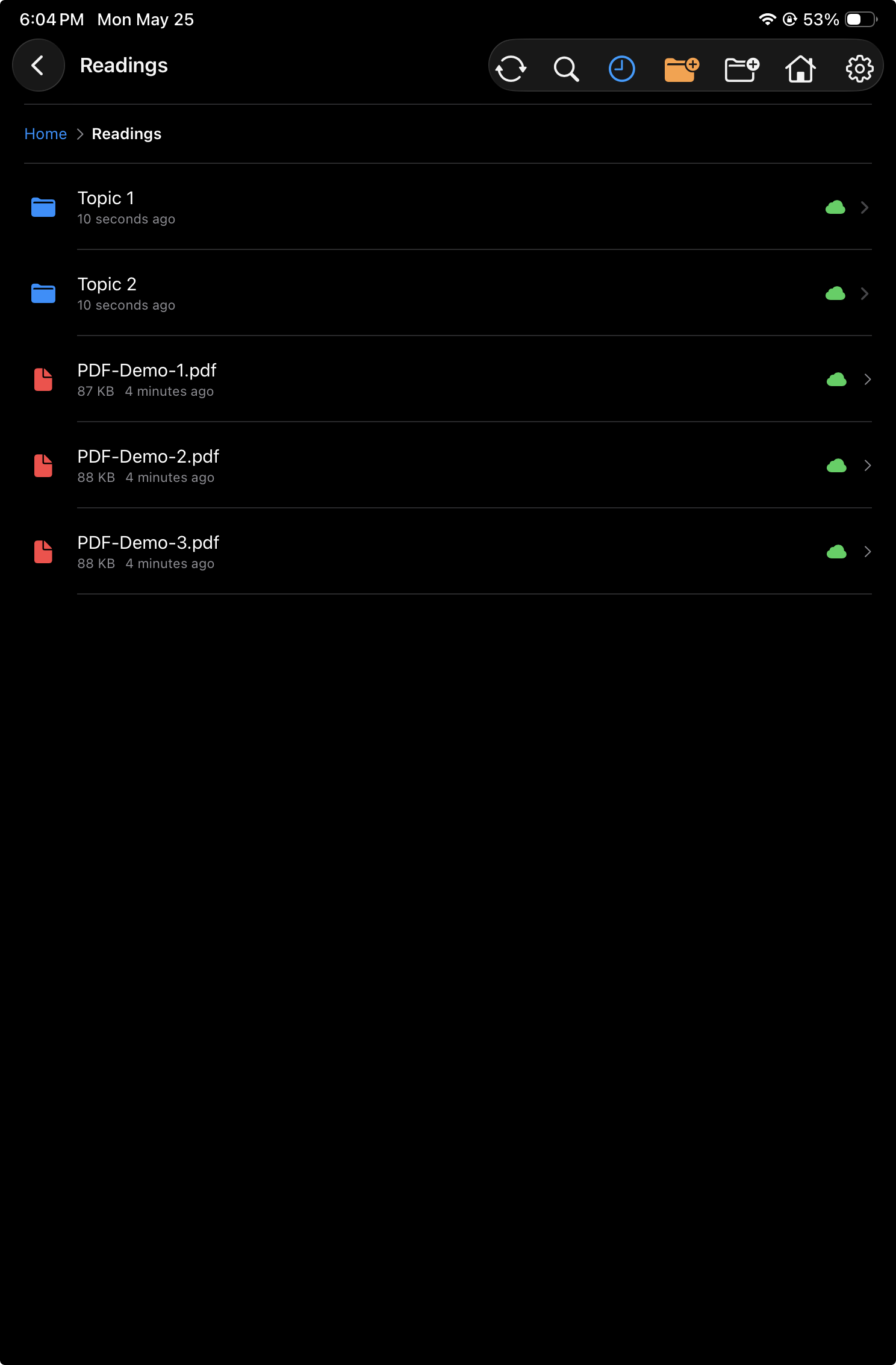
Folder view
Browse folders, open PDFs, and manage file actions from context menus.
Folder navigation
Move through document folders with a familiar file-browser layout.
Folder view is built for navigating PDFs and folders. Users can open documents, move through folder hierarchies, and manage items directly from the list without leaving the app's reading workflow.
Folders and PDFs
Browse folder contents, open PDFs, and move between nested folders.
Sync badges
Item badges indicate sync status, such as synced, pending upload, or other cloud states.
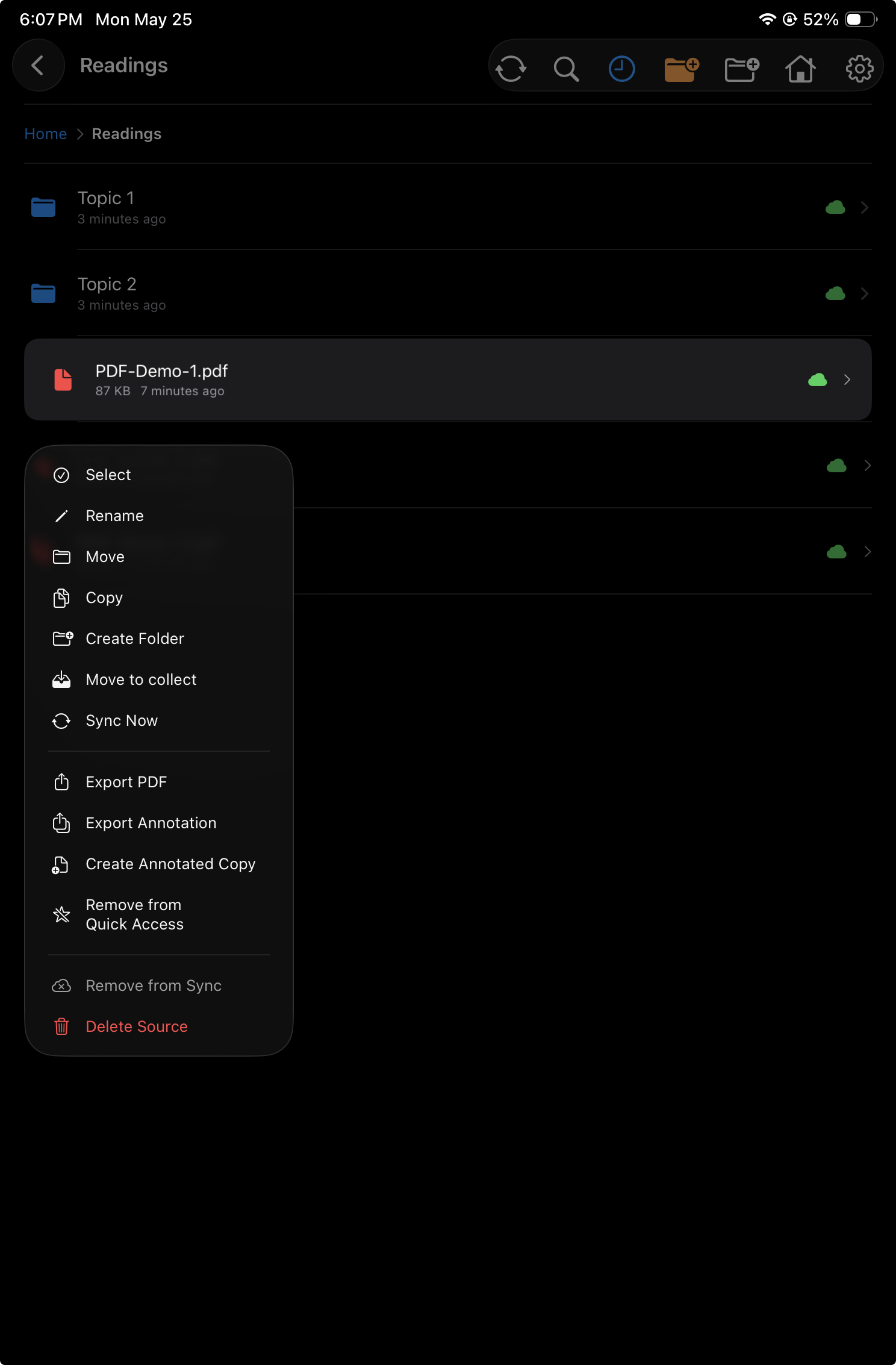
File actions
Long-press a PDF to open its context menu.
A long press on a PDF reveals file-level actions. This keeps common document management tools close to the file itself, while preserving the simple list view for normal browsing.
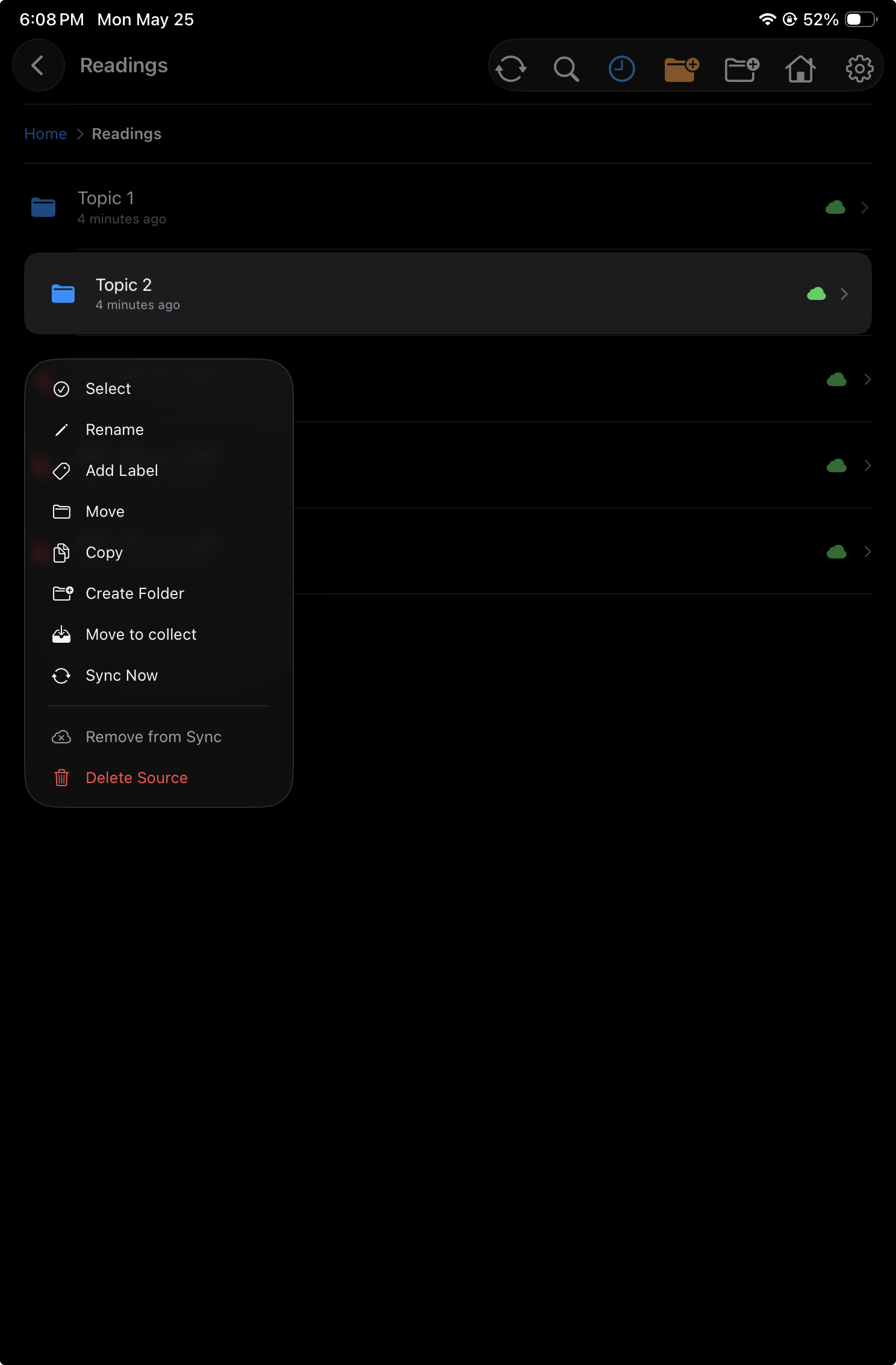
Folder actions
Long-press a folder to manage that folder.
Folder context menus expose actions for organizing folders and managing the documents inside them. The interaction is the same as files: long-press the item, then choose the action.
Status at a glance
Badges show whether documents are synced or need attention.
For offline synced files, sync badges help users understand each item's cloud state while browsing. A file can show that it is synced, waiting to upload, or otherwise needs attention, so users can decide whether to open, sync, or manage it.
Synced
The current file or folder is up to date with its cloud copy.
Needs upload
Local changes exist and should be synced back to the cloud.
Other states
Badges can also communicate cloud availability or other sync-related states.